
How to manage tags on resources
Requirements
Instructions
Managing Tags via the Control Panel
You can manage OVHcloud product tags through the general tag management interface or dedicated interfaces within the products.
Tags are metadata in the form of key-value pairs added to OVHcloud resources, which you can use in IAM policies or for resource categorization.
Tag Manager
Tag Manager is the interface that allows you to manage your tags across all your OVHcloud products in a transversal manner.
The Tag Manager page displays all the tags currently placed on your resources.
For each tag, the dashboard shows the number of resources associated with this tag and the type of tag.
There are three types of tags:
- Custom: Created and managed by you.
- Predefined: Created by OVHcloud; you are responsible for assigning this type of tag to your resources.
- System: Created and automatically assigned by OVHcloud to your resources (cannot be deleted).
Unassigned predefined tags and system tags do not appear by default and must be displayed via the Quick filters button.
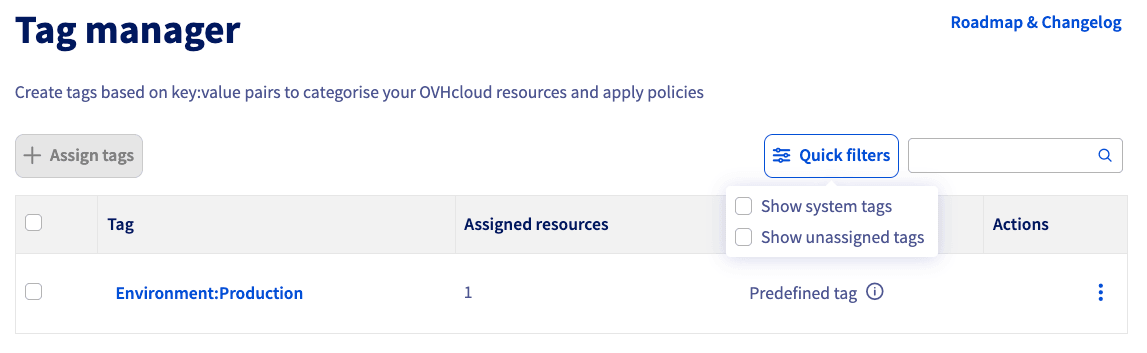
By clicking on the tag, you can access the tag details with the list of concerned resources.
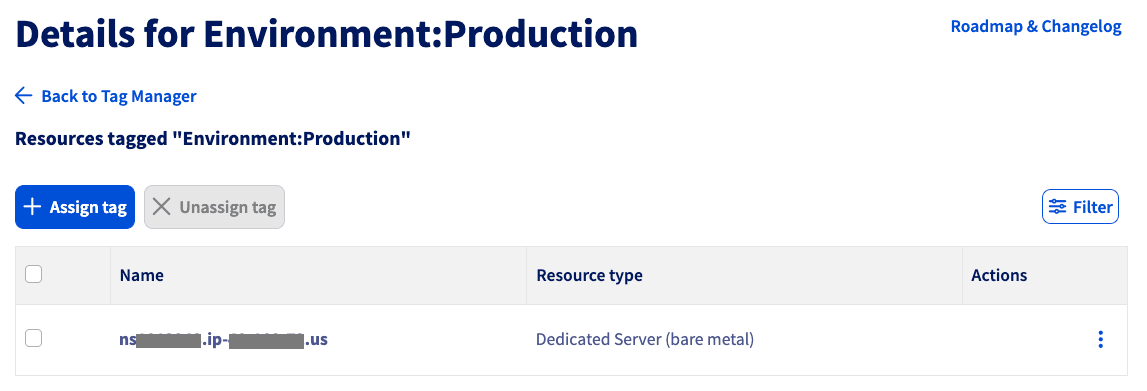
It is then possible to assign this tag to other resources via the + Assign tag button. The list of all resources in the account is then displayed, allowing multiple selections.
A filter field is present on the right to facilitate searching for resources.
On the contrary, by selecting resources in the tag details, it is possible to remove the tag from them via the X Unassign Tag button.
Product dashboard
For some OVHcloud products, an interface has been added to manage tags directly from the resource management dashboard.
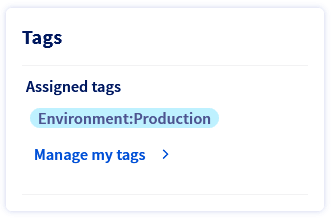
The tag management interface allows you to add or remove tags from the resource.
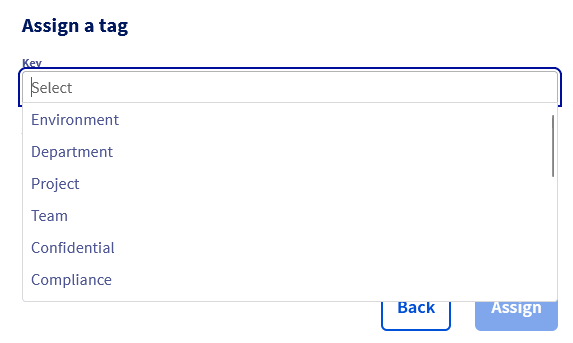
It is possible to either select one or more tags from the list of predefined tags or enter your own tags by typing the keys and values directly into the fields.
Managing Tags via API
You can also manage tags via the OVHcloud API:
The tag must be specified in the following format:
Using Tags in IAM Policies
Tags can be used as conditions in IAM policies using the resource.Tag(tag_key) condition.
For example, the following policy grants rights to all VPS with the tag Environment:Production:
Go further
Browse all the IAM guides.
Browse the rest of the OVHcloud US documentation for guides on our other products and services.