
Valkey - Tutorial - Boost your CMS (from the example of WordPress)
Do you have a CMS website or blog, perhaps powered by WordPress? Learn how to speed up page load times and SQL queries using Valkey ! In this tutorial, we will set up a NoSQL Valkey database and use it to cache data. All users, even administrators and especially visitors, will directly benefit from a better performance of the website.
NOTE: OVHcloud provides services for which you are responsible for their configuration and management. You are therefore responsible for their proper functioning.
This tutorial is designed to help you as much as possible with common tasks. If you are having difficulty performing these actions, please contact a specialized service provider. OVHcloud cannot provide you with technical support in this regard.
CMS platform
For this tutorial, we are using the WordPress CMS, running on Linux Ubuntu with MySQL as the main database. To get the object cache, we will use a Cloud Database for Valkey and a WordPress plugin for Redis®.
NOTE: This tutorial will show you how to use one or more OVHcloud solutions with external tools and will describe the actions to be carried out in a specific context. Please remember to adapt these actions to fit your situation.
Remember to back up your files before making any changes.
Requirements
This tutorial requires:
- A running WordPress
- A WordPress administrator account to install a plugin
- A PHP Redis® client supported by the plugin
- An OVHcloud Cloud Database for Valkey
Instructions
Tutorial technical environment
The main software component releases used for the following screenshots and examples are as follows:
- Linux Ubuntu 21.10 / apache2 2.4.48 / PHP 8.0 / MySQL 8.0.27
- WordPress: 5.8.2
- phpredis: 5.3.2
- Redis Object Cache: 2.0.21
- Redis® open source: 6.2
Configuring your CMS: WordPress
If you need to install WordPress, please refer to the official guide.
Once done, we will set up the WordPress backend correctly. For the next steps, let's consider that you have an up-and-running WordPress system on a LAMP (Linux, Apache, MySQL, PHP) platform.
PHP Redis® Client: PhpRedis
As WordPress is based on PHP, we will need a PHP Redis® client. We propose to use one of the main recommended PHP Redis® clients: PhpRedis.
As TLS is required to secure the connection to the OVHcloud Public Cloud database for Valkey, we have to use v5.3.x release of PhpRedis or above.
Please check that PhpRedis is installed, with a compliant release:
- If you do have SSH access to your WordPress server you can use the following command:
In case it is not available on your system, please install it:
- If you don't have SSH access to the system, use the
phpinfo()function and do a search on the Redis® module as in the following example:

Redis® WordPress plugin
Multiple Redis® plugins could be used to cache data to Valkey. You can search them directly in the Plugin menu. For this tutorial, we decided to use the most popular one: Redis Object Cache. Click on the Install Now button:
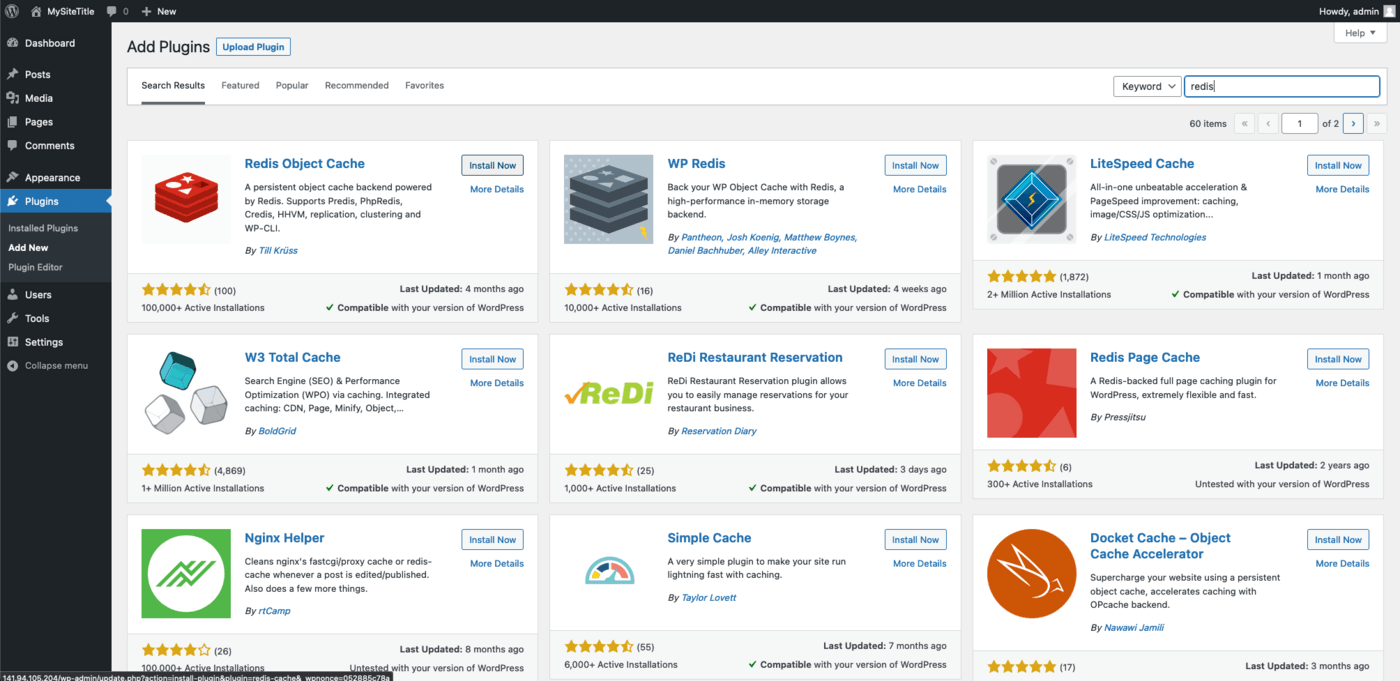
You can get more information related to this WordPress plugin at the official WordPress plugin documentation - Redis Object Cache.
Configure WordPress to connect to the Valkey service
Modify wp-config.php
Before activating the Redis Object Cache plugin, it is required to configure the Valkey database connection parameters. By default, this plugin looks for a Valkey hosted on the same server as your WordPress. It's not our case scenario here, since the Valkey is hosted in OVHcloud Public Cloud Databases.
We will follow the official plugin wiki to define the remote server: https://github.com/rhubarbgroup/redis-cache/wiki/Configuration-Options. This has to be done in the WordPress configuration file (wp-config.php located in /var/www/wordpress/ in our example) and add the following lines:
Modify the host
The salt key is not mandatory, even more so if you have only one application using a Valkey service, but if you have several WordPress sites, it will be useful to determine what-pushes-what.
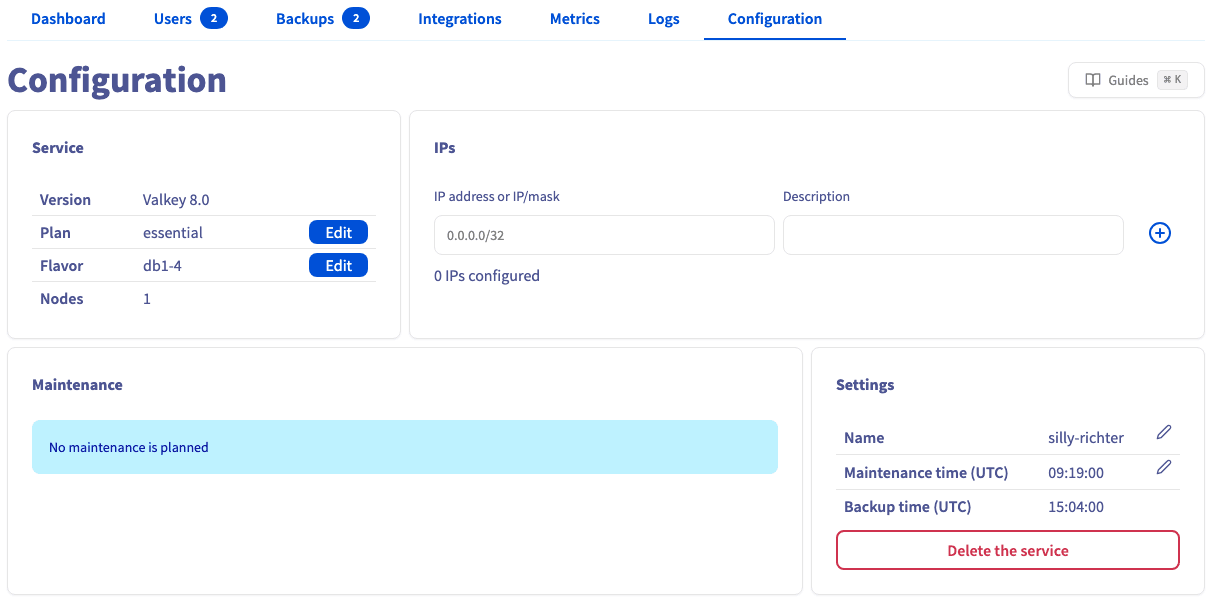
Check that authorized IPs are updated
Do not forget to add the WordPress IP address to the authorized IPs list of the Valkey service.
Activate and enable the plugin
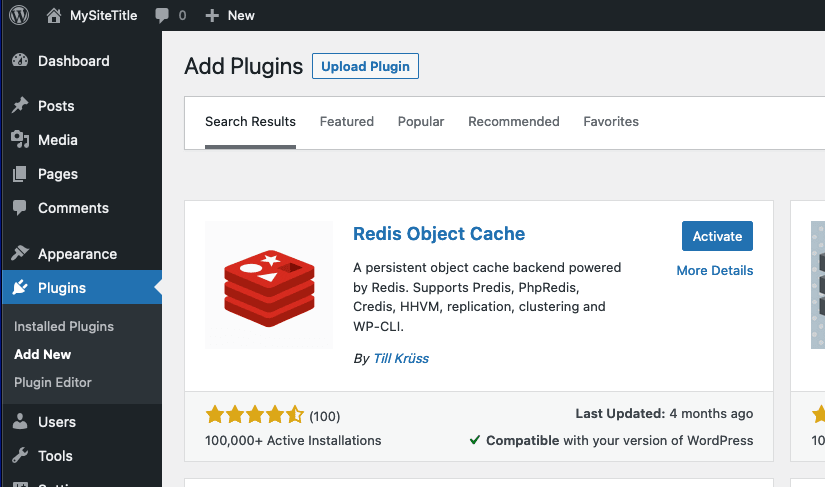
Now all installation and configurations are done. So let's activate the plugin.
Then click Enable Object Cache.
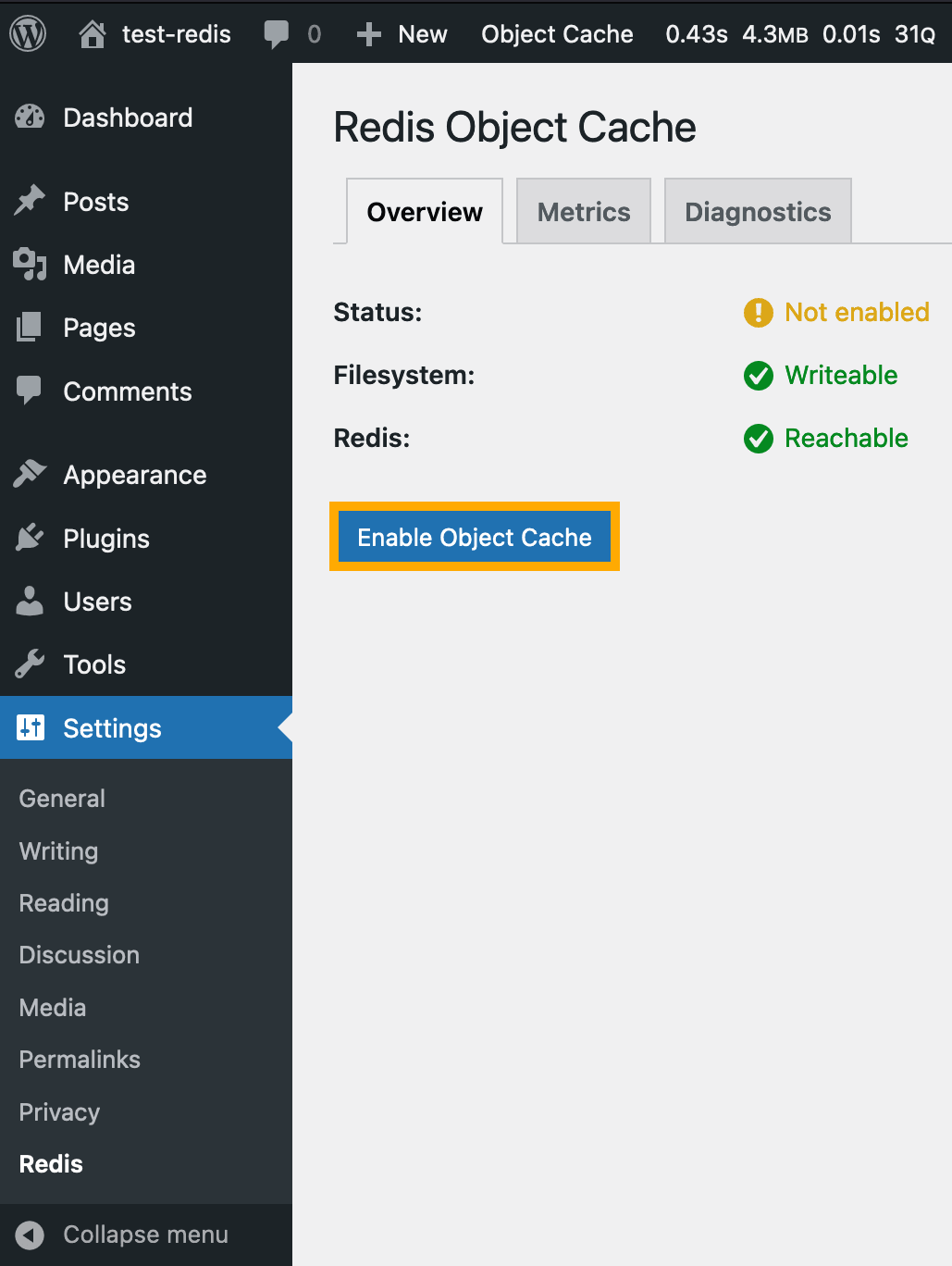
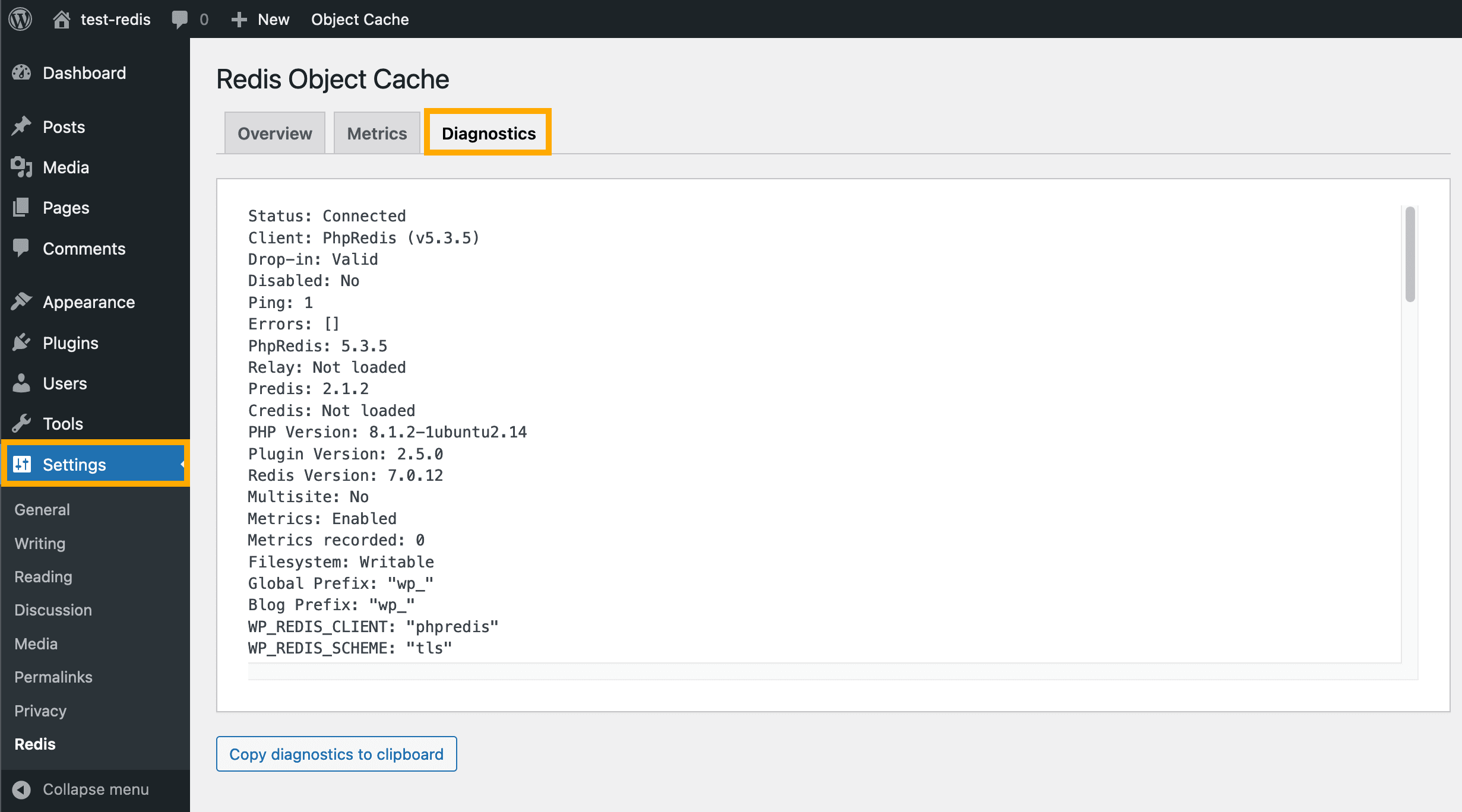
If you run into any problems enabling the Redis Object Cache plugin, start your investigation by looking at the information available in the Diagnostics tab in the plugin Settings menu:
Additional parameters
Please find below more documentation on the additional available parameters that you might want to use to optimize your Valkey service usage:
Checking performance boost
Validate that the cache is populated
If you can use a CLI to query the Valkey service, you can check that information populated to it after browsing some WordPress pages.
In our case:
Install a query monitoring plugin
If you want to have more information about how the cache has impacted the performance, you can measure the gain in response delay directly with your browser. You can also see more details using an additional WordPress plugin like Query Monitor.
Example of performance boost with a basic WordPress site
Using a simple WordPress site populated with poor content and a very limited number of posts, Let's take a look at the improvement.
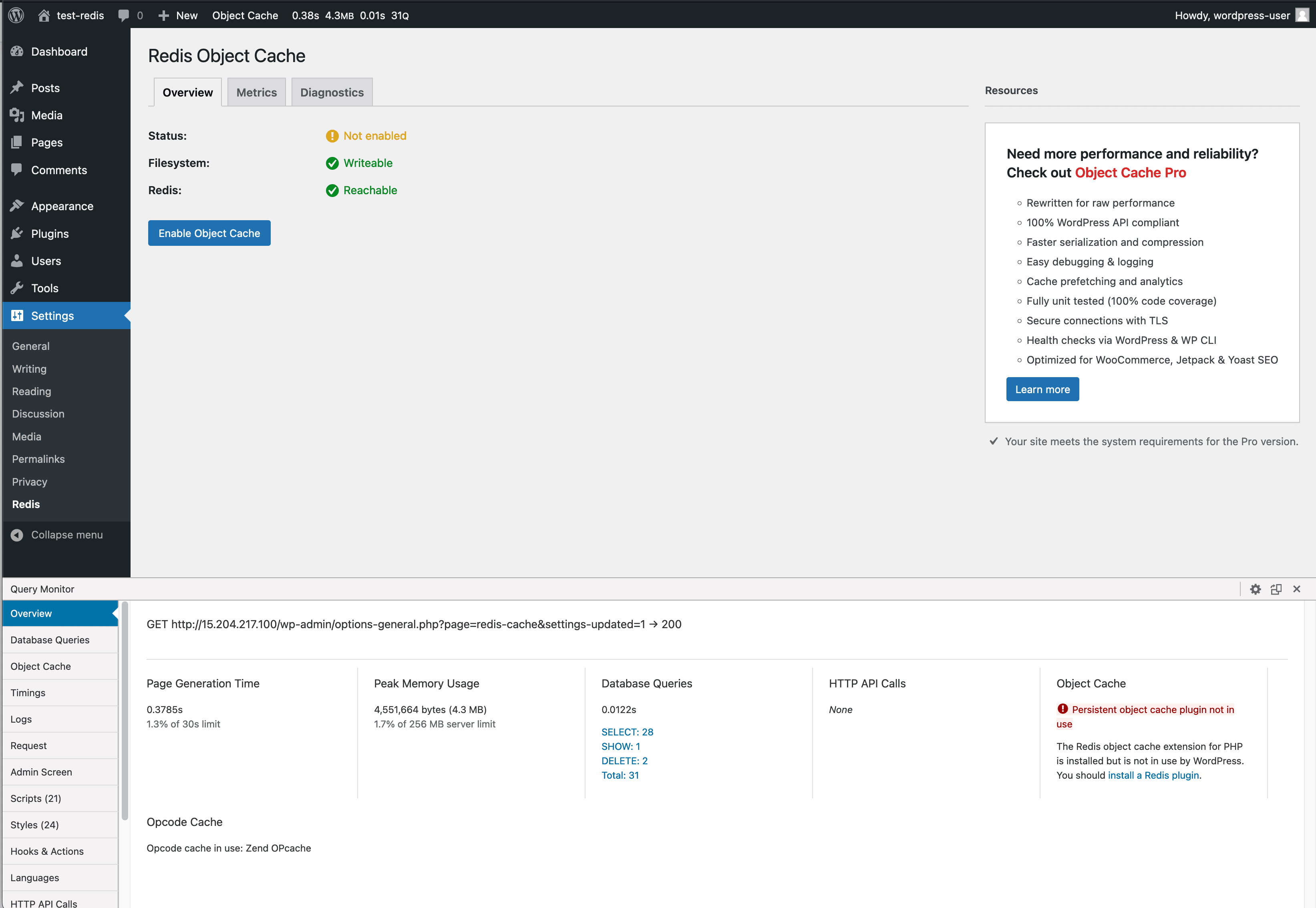
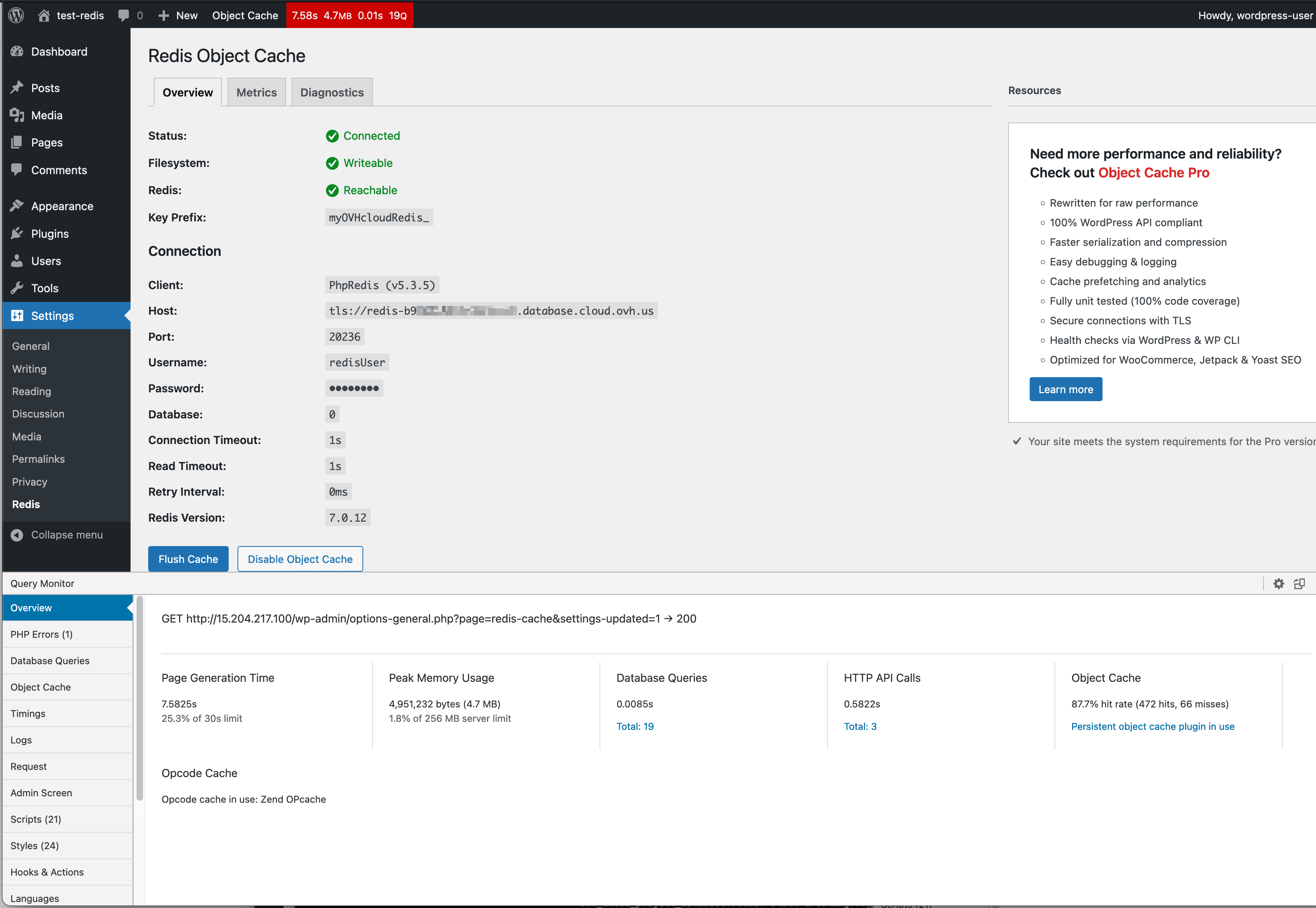
We will look at the number of database requests for both cases: with and without the cache enabled.
Without the cache, there is a total of 31 database queries taking 0.0122s:
With the cache, there is a total of 19 database queries taking 0.0085s:
Two main benefits of using a Valkey service
As seen using Valkey service, you will see a performance gain for your CMS. It will be even more efficient as soon as your site stores more and larger data. You will also directly benefit from the fact that the MySQL server will be less stressed with the load / concurrent accesses, which will offer the opportunity to handle more and more users.
Go further
Browse all the Databases guides.
Browse the rest of the OVHcloud US documentation for guides on our other products and services.
Learn more about Managed Databases on the OVHcloud US website.