
Using the Secret Manager with the REST API
Requirements
Instructions
Description
The Secret Manager is a product that allows you to securely store credentials, API keys, SSH keys, or any other type of secret necessary for the operation of your applications.
A secret is a collection of one or more key-value pairs grouped within a version. Each modification of a secret creates a new version of that secret, allowing you to go back in the history of changes to the secret.
The REST APIs are one of the two API sets offered by the Secret Manager, along with the Hashicorp Vault KV2-compliant API. These APIs are designed to be similar to the OVHcloud API set and the OKMS APIs for the Key Management Service.
The REST APIs can be used either through the centralized OVHcloud API or directly on the OKMS domain in the region. The only difference lies in the exact API path:
- Centralized OVHcloud API: /v2/okms/resource/{okmsId}/secret/{path}
- Regionalized OKMS API: /api/{okmsId}/v2/secret/{path}
This documentation will focus on the APIs of the OKMS domain in the region.
Contacting the OKMS domain
Communication with the OKMS domain for encryption and signature actions is available via APIs.
Since the OKMS domain is regionalized, you can access the API directly in its region: https://my-region.okms.ovh.us.
For example, for an OKMS domain created in the us-east-vin region: https://us-east-vin.okms.ovh.us.
It's possible to communicate with the OKMS domain using:
- The Swagger UI
- The OMKS CLI: https://github.com/ovh/okms-cli
- The Golang SDK: https://pkg.go.dev/github.com/ovh/okms-sdk-go
Using the OKMS API via the Swagger UI
You can access the OKMS Swagger UI by clicking on the link in the OVHcloud Control Panel, in your OKMS domain dashboard.
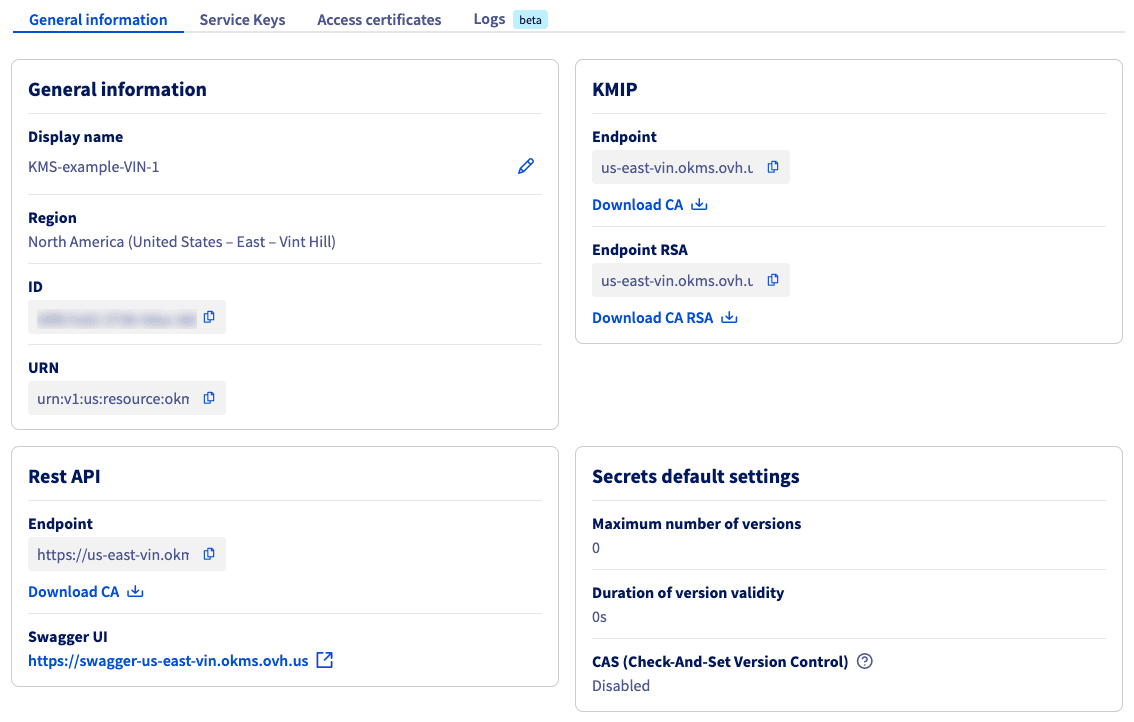
You will land on the non-authenticated version of the Swagger UI, which is meant for API documentation purposes. If you want to use the Swagger UI to make requests on your own OKMS domain, you will need to switch to the authenticated version, which is linked in the description section:
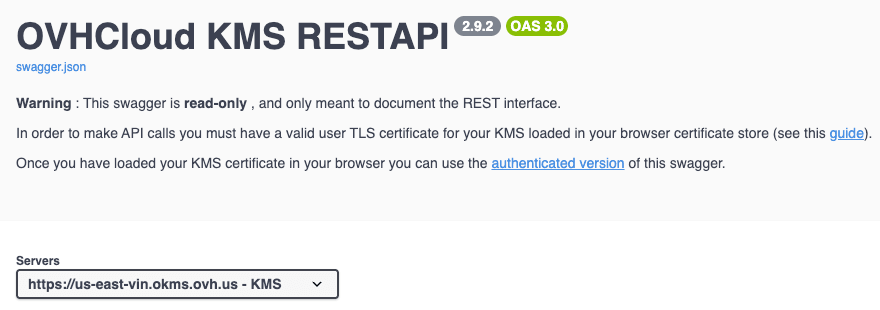
The next steps will guide you on how to authenticate.
Importing your OKMS credentials into the browser
NOTE: Unless you are confident in your IAM configuration, we suggest using a KMS access certificate that is not tied to a specific user. If you are uncertain, you can toggle the Add account root identity slider when generating your access certificate.
This process is covered in the Importing your KMS credentials into the browser section of our Using OVHcloud Key Management Service (KMS) guide.
Accessing the authenticated Swagger UI
This process is covered in the Accessing the authenticated Swagger UI section of our Using OVHcloud Key Management Service (KMS) guide.
Create a Secret
To create a secret, you can use the following API:
The API expects the following values:
For example:
Manage Secrets
Update Metadata and configuration
Once the secret is created, it is possible to update the secret's metadata or configuration.
The API expects the following values:
It is also possible to change the default configuration of the OKMS domain for the values cas_required, deactivate_version_after, and max_versions using the API:
Create a new version
It is also possible to modify the secret's content, which implies creating a new version for the secret. New versions can be created using the API:
Whether the modification of the data of the secret is done using the general API for updating the secret or the specific API, a new version of the secret is created.
A secret can contain as many versions as desired, up to the maximum limit of the max_versions parameter. If the maximum number of versions is reached, the oldest version is automatically deleted.
Manage versions
It is possible to manage the different versions of the secret using the API:
The API expects the unique value:
Go further
Browse all the Secret Manager guides.
Browse the rest of the OVHcloud US documentation for guides on our other products and services.
Learn more about Secret Manager on the OVHcloud US website.